

There is a very simple way to change a Webpage into pdf in Google & Chrome.
Follow the steps :
If you opened the page in Google then click on three dots in the right top as shown and click on "open in chrome".

|
| Credit: Screenshot taken from SportSkeeda blog. |
Step 2. Click on the three dots in the right top and select the share option.
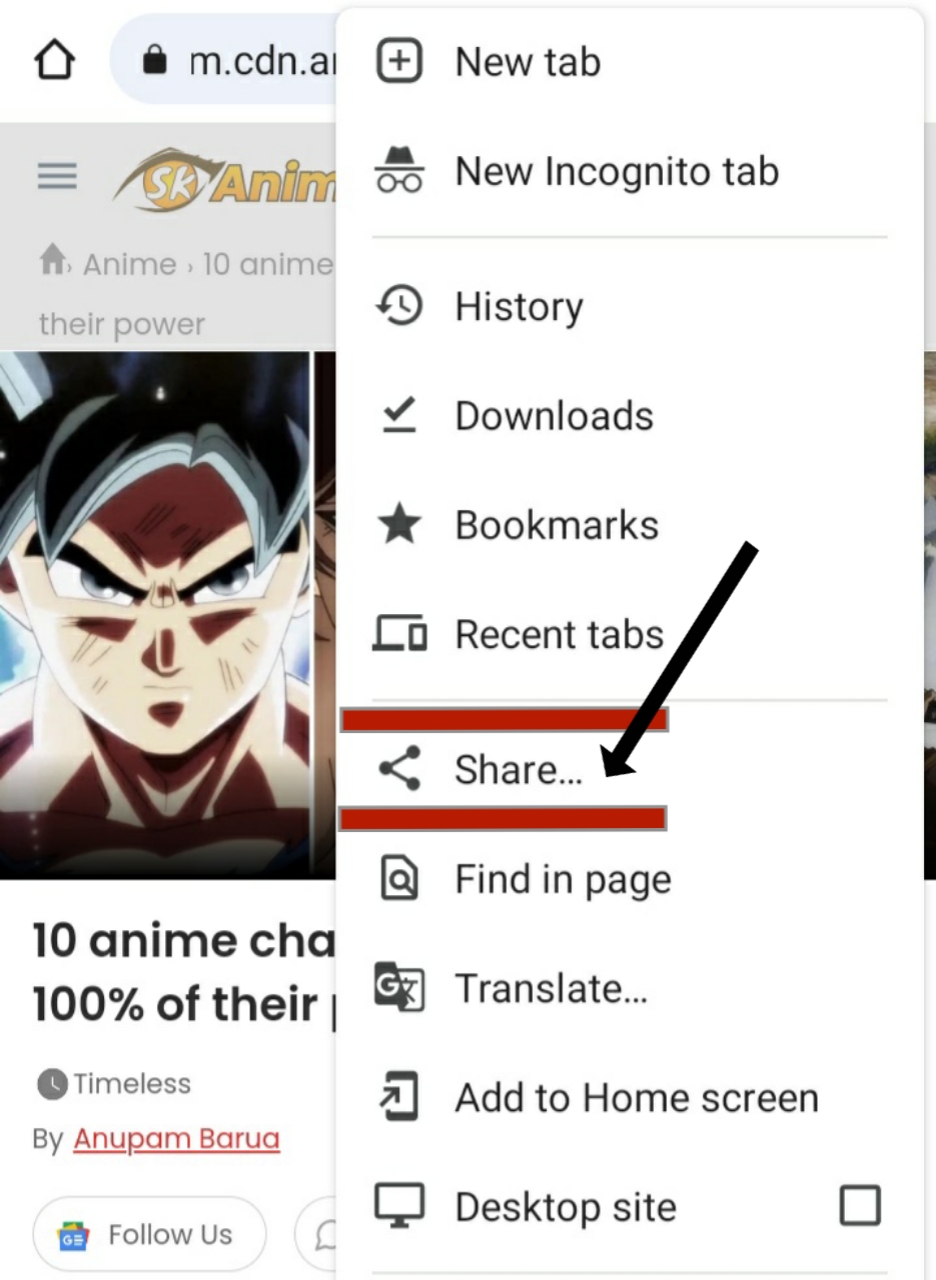
|
| Credit: Screenshot taken from SportSkeeda blog. |
Step 3. Scroll the bottom to left and you will find print option click on it.


Step 4. A page will open see the PDF written in a circle click on it and wait until the download is complete.

Mission completed you changed the Webpage into PDF.
Changing A Webpage into PDF in PC or Laptop.
You can easily change a Webpage into PDF in your Pc or Laptop by following these easy steps:
suppose this webpage↓

|
| Credit: Screenshot is taken from SportSkeeda Blog. |
Step 2. Right click on the blank area where no text and image are present, many options will come on the screen then find print and click on it.

|
| Credit: Screenshot is taken from SportsSkeeda Blog. |
An Interface will open like this. ↓

|
| Credit: Screenshot is taken from SportsSkeeda Blog. |
Step 3. On Printer option select the format save as PDF and click on the save button. Wait until download is completed.


Mission accomplished you changed the webpage into PDF in your Laptop or PC.
Now let's talk about issues.
1. File showing empty.
If your file showing empty means your device has not enough space to store it. So, delete something unimportant to create space so it can be stored.
